


The Red USB Port on Your Laptop Isn’t Decoration — Here’s What It Actually Does
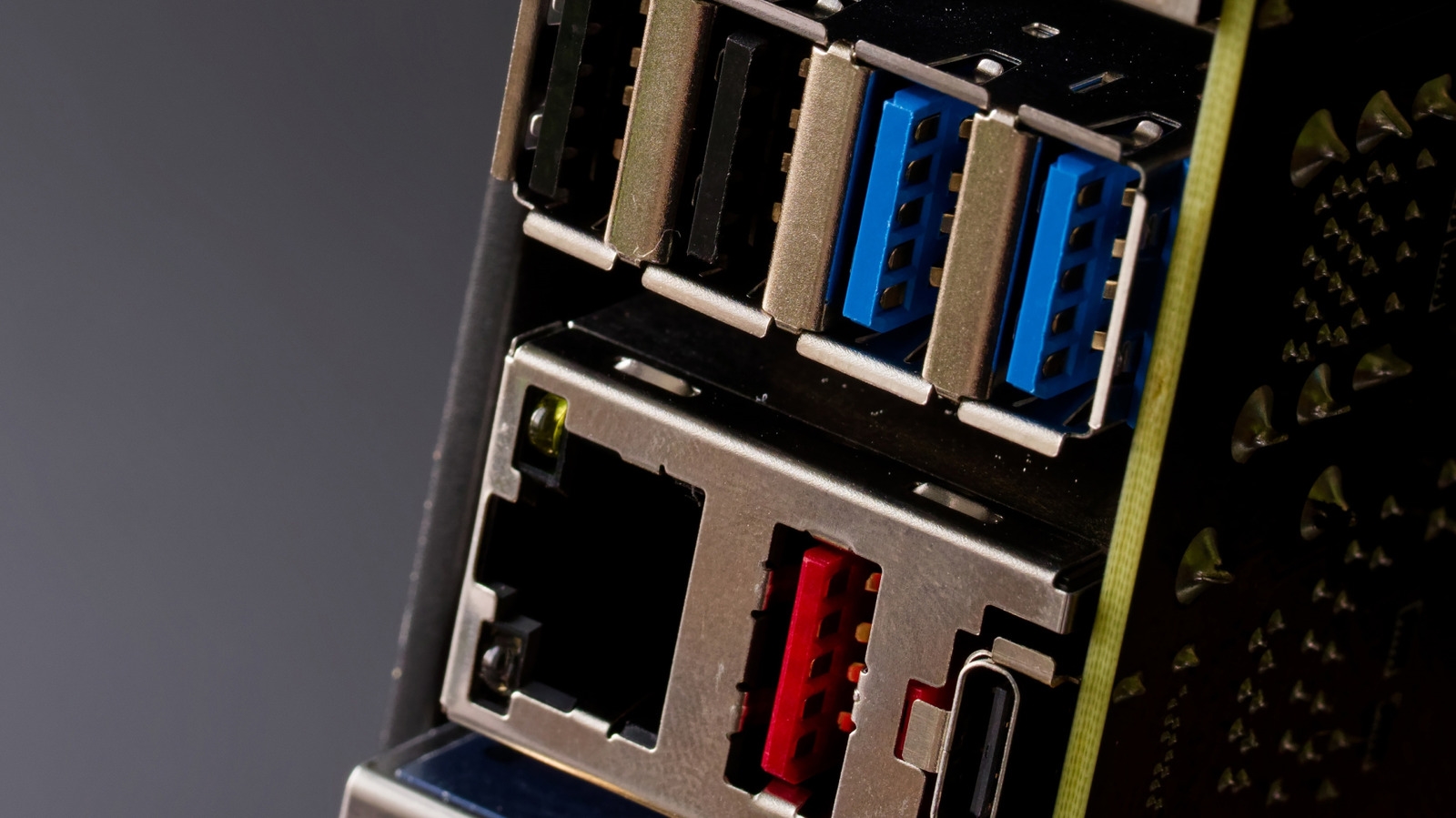
That red plastic insert inside one of your USB ports isn’t an accident. On most gaming laptops, high-end desktops, and video editing workstations, the red port is the fastest one on the machine — and often the only one that stays powered while the computer sleeps. If you’ve been plugging your SSD or phone charger into the wrong port for years, this article will cost you five minutes and save you a lot of frustration.
Why color-coding exists on USB ports at all
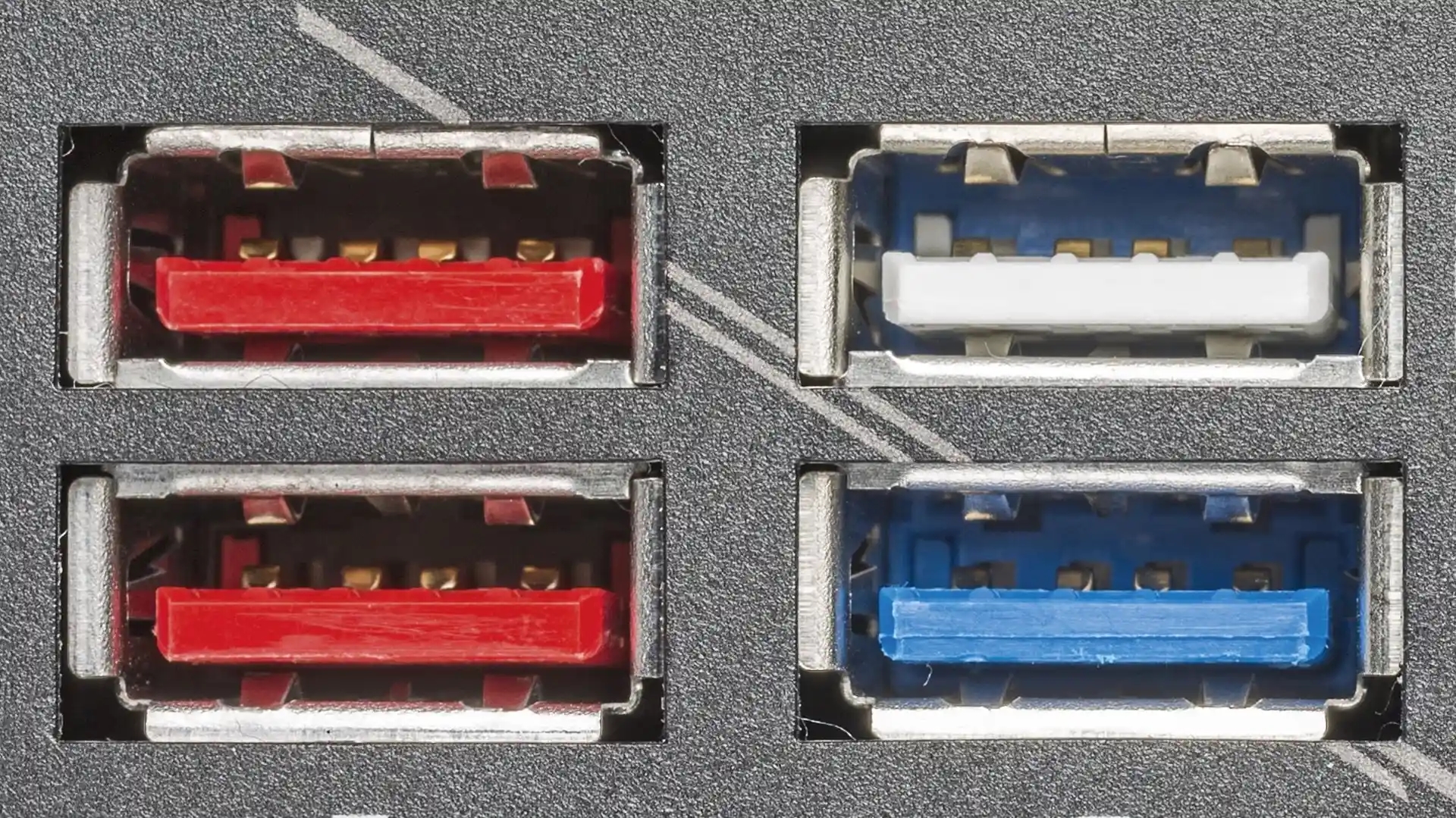
USB manufacturers started using color to communicate port capability because the spec names were — and still are — a disaster. Black meant USB 2.0. Blue meant USB 3.0 (also called SuperSpeed, also called USB 3.1 Gen 1, also called USB 3.2 Gen 1 — more on that mess later). Red got assigned to the fast tier: USB 3.1, USB 3.2 Gen 2, or Gen 2×2.
This is an informal convention, not a standard. Nobody forced manufacturers to follow it. But enough of them did that the tech community started reading red ports the way they’d read a priority boarding lane — skip the line, get there faster.
What “faster” actually means in real numbers
USB 3.0 (the blue ports most people are familiar with) tops out at 5 Gbps theoretical bandwidth. USB 3.2 Gen 2 — what the red port usually runs — doubles that to 10 Gbps. Gen 2×2 doubles it again to 20 Gbps.
In practice, moving a 50GB folder of 4K footage:
- USB 2.0 black port: 25–40 MB/s → roughly 20+ minutes
- USB 3.0 blue port: 200–400 MB/s → 2–4 minutes
- USB 3.2 Gen 2 red port: 800 MB/s to 1+ GB/s → under a minute
That gap is the difference between copying a project file before a meeting and missing the meeting. If you’re moving large game installs, RAW video, or backup drives regularly, plugging into the right port matters.
The other thing the red port does: it never sleeps

Most USB ports cut power when a laptop sleeps or the screen turns off. The red port — specifically those labeled “Always On” by manufacturers like ASUS, Gigabyte, and MSI — keeps delivering current even when the machine is in sleep mode.
This is why leaving your phone plugged into the red port on a sleeping laptop actually charges it overnight. Plug into a standard port and you’ll often wake up to a phone at the same percentage.
For anyone running a home desk setup, this matters beyond phones. Capture cards, audio interfaces, LED controllers, and USB microphones often need stable, continuous power to hold their connection reliably. The red port is the safe bet for anything you want to stay live while the machine rests.
The honest caveat: red doesn’t always mean fast
The color convention was never enforced. USB Implementers Forum — the organization that sets USB standards — never required manufacturers to use specific colors for specific capabilities. That means:
- Some laptops use red ports that perform no faster than standard blue
- Some manufacturers use black ports for their fastest USB connections
- Some gaming-focused mainboards color everything red to match the RGB aesthetic, regardless of actual spec
I’ve seen budget gaming laptops with red ports that benchmarked at 480 MB/s — barely above USB 3.0 territory. The color alone isn’t the answer.
What actually tells you what a port can do
The symbols printed next to the port. They’re small, often overlooked, but precise:
| Symbol | What it means |
| SS | SuperSpeed — USB 3.0, 5 Gbps |
| SS 10 | USB 3.2 Gen 2, 10 Gbps |
| SS 20 | USB 3.2 Gen 2×2, 20 Gbps |
| PD | Power Delivery — can charge laptops and devices |
| ⚡ | Always On — powered during sleep |
| Thunderbolt symbol (⚡ in triangle) | Thunderbolt 3/4 — 40 Gbps, also outputs video |
| DP | DisplayPort output capable |
Thunderbolt ports — typically USB-C with a lightning bolt symbol — are in a different class entirely. A single Thunderbolt 4 port can run a 4K external monitor, charge your laptop, and transfer data at 40 Gbps simultaneously. Most red ports aren’t Thunderbolt. But if your port has the Thunderbolt symbol, that’s the one you should be routing everything through.
How to check your specific laptop’s port specs in under two minutes
Don’t guess by color. Pull the manual or check the manufacturer’s spec page. Search your laptop model + “port specifications” and look for the USB section. Most spec pages list each port with its actual standard.
Alternatively, on Windows: open Device Manager → Universal Serial Bus controllers. It lists every USB host controller and its rated speed. Match the controller name to the port position on the left or right side of the chassis.
What a modern USB port can actually do (most people don’t use half of this)
The mental model of “USB = file transfer” is at least five years out of date. A single well-specced USB-C port on a current laptop can:
- Transfer a 100GB file in under two minutes
- Charge the laptop itself at 100W+
- Drive a 4K external monitor at 60Hz
- Connect an eGPU for gaming or rendering
- Run a multi-port dock — one cable, three monitors, Ethernet, and USB-A expansion
- Support an external NVMe SSD for real-time video editing
The same physical connector, the same port, doing all of that — depending entirely on the protocol running behind it.
That’s the part the color coding was always trying to gesture at. The red port isn’t just about speed. It’s about which part of the machine the manufacturer thought was worth building properly.
Before you buy: common questions about USB ports
I’m buying a new laptop. How do I know which ports are actually fast?
Don’t trust photos or color in marketing images. Go to the manufacturer’s spec page and look for the USB section. You want to see at least one port listed as “USB 3.2 Gen 2 (10 Gbps)” or Thunderbolt 4. If the spec page lists only “USB-A” or “USB 3.2” without the Gen designation, assume it’s the slower Gen 1 variant.
Does it matter which USB port I use for an external SSD?
Yes, significantly. A fast NVMe external SSD (Samsung T9, WD Black P50, etc.) is capable of 1,000+ MB/s reads. Plugged into a USB 2.0 port, it’ll perform at 40 MB/s — the drive is throttled entirely by the port. Use the fastest port on the machine and you’ll see actual drive speeds.
My laptop only has USB-C. Are those all the same speed?
No, and this is the most common source of confusion on modern thin-and-light laptops. USB-C is a connector shape, not a speed standard. Some USB-C ports run at 5 Gbps. Some run Thunderbolt 4 at 40 Gbps. Some only charge and do nothing else. Check the symbols next to each port — they’re printed there for exactly this reason.